How to Set Up Lost Tool Recovery
Tools get left behind—it happens. The Lost Tool Recovery feature ensures that if a stranger finds your equipment, they have an easy, instant way to contact you to return it.
When enabled, your asset tags (QR codes) will direct scanners to a specialized "If Found" page containing your company's contact details.
Enabling Lost Tool Recovery
- Log in to ToolWorks and navigate to Settings > Account.
- Scroll down to the Lost Tool Recovery section.
- You will see two options for handling lost tools:
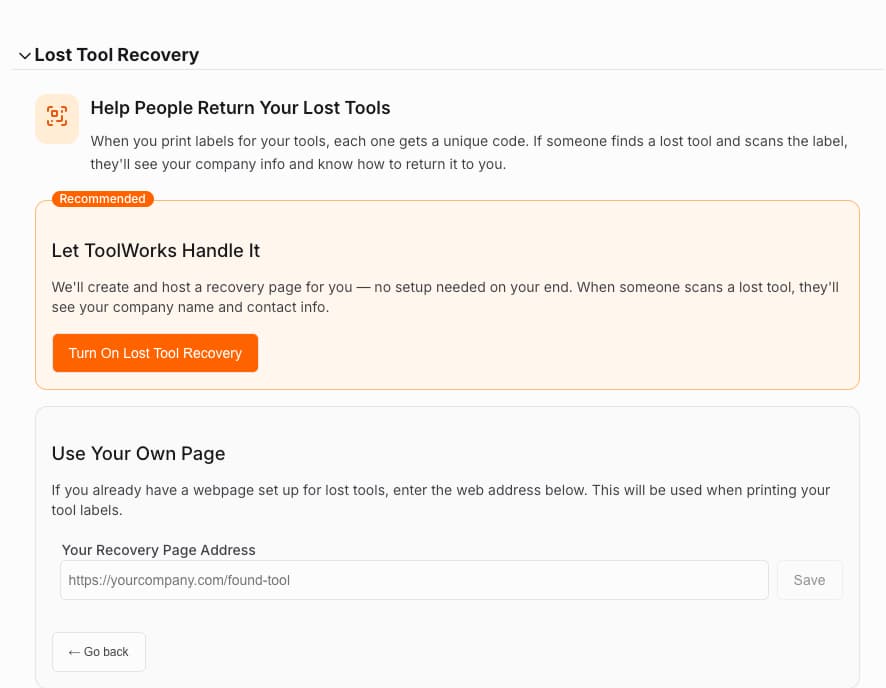
Option A: Let ToolWorks Handle It (Recommended)
This is the easiest method. ToolWorks automatically generates a secure, mobile-friendly recovery page for every asset using your existing company profile.
- Click the orange Turn On Lost Tool Recovery button.
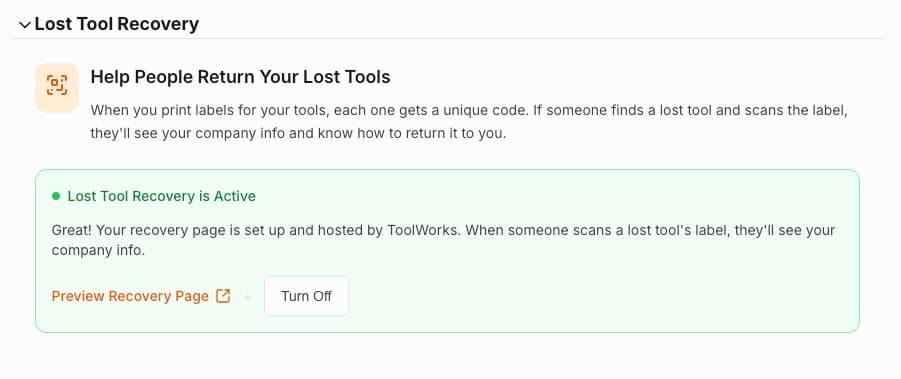
- That's it! Your recovery page is now active.
- You can verify it works by clicking Preview Recovery Page.
Note: This page displays your Company Name, Address, Support Email, and Phone Number. Please ensure your [Company Profile] is up to date so finders can reach you.
Option B: Use Your Own Page
If you already have a "Lost & Found" page on your corporate website (e.g., www.yourcompany.com/lost), you can route your tags there instead.
- Click the link labeled I have my own recovery page.
- Enter the full web address (URL) where you want scanners to be directed.
- Click Save.
What happens when a tool is found?
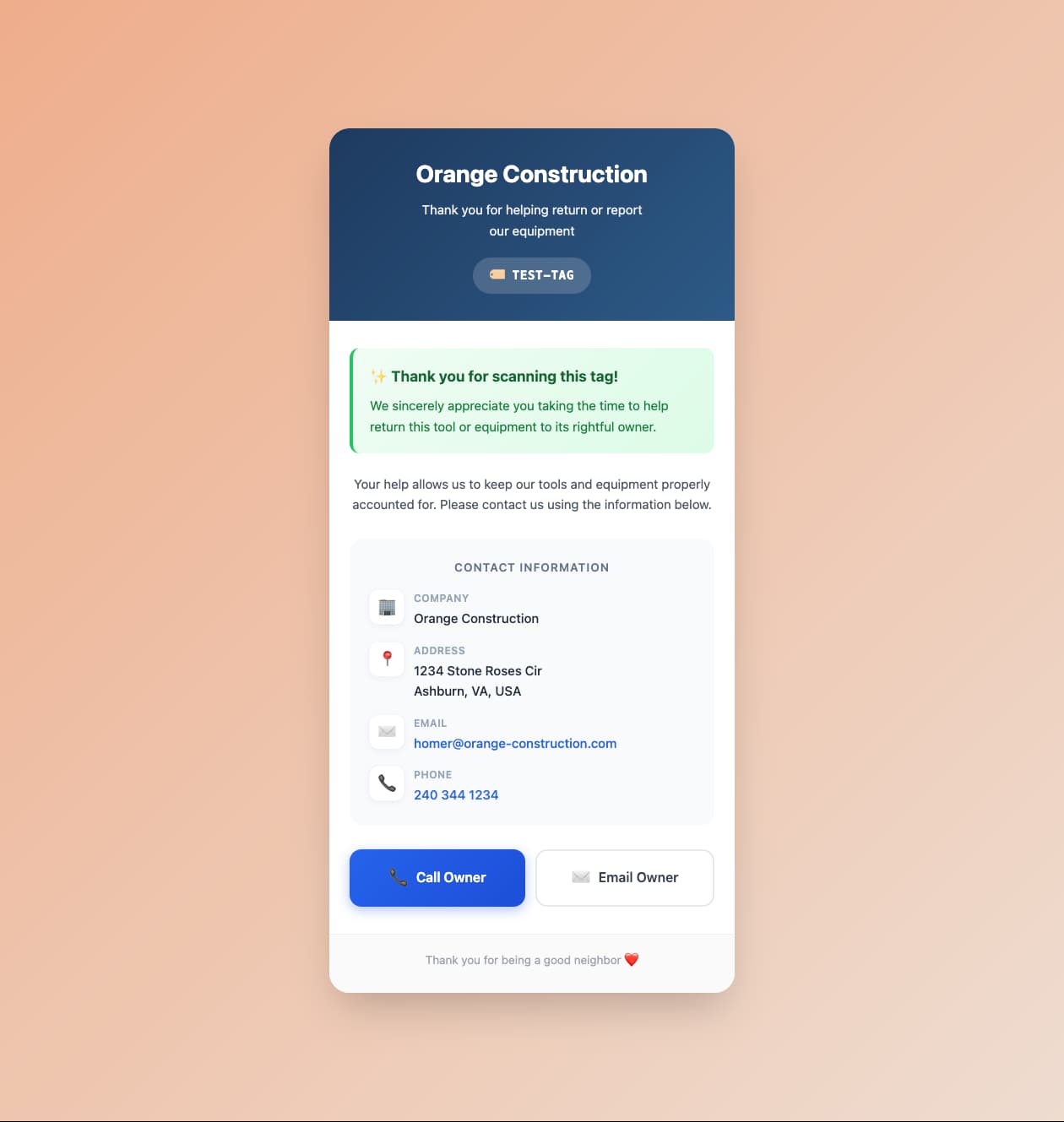
When someone scans the QR code on your tool with their smartphone camera, they will immediately see a mobile-optimized page that looks like this:
- Company Information: Displays your verified business name and address.
- One-Tap Contact: Large buttons allow the finder to Call Owner or Email Owner immediately without typing numbers.
- Asset Confirmation: It confirms they have scanned a valid tag (e.g., "TEST-TAG").
Frequently Asked Questions
Does this work with my old asset tags? No. Older tags printed before this feature was enabled do not contain the necessary web link. To use Lost Tool Recovery, you must reprint and reaffix new tags to your tools.
- How to update tags: Go to the Tool Tags Printer report to bulk print new tags for all your inventory at once.
Can I turn this off later? Yes. You can return to Settings > Account and click Turn Off at any time. If you do, scanning the QR code publicly will stop showing your contact info.
What information is shared? Only the information you see on the preview page is shared: your Company Name, Address, and Support Contact details. We never share the tool's purchase price, assignment history, or exact location data.
Help