Vehicle Management
Vehicle management is an essential aspect of maintaining a fleet of vehicles, ensuring they are in optimal condition for use. ToolWorks offers comprehensive features to help you manage vehicle information, track maintenance schedules, and monitor usage effectively.
- Add A Vehicle
- Convert Existing Equipment to Vehicles (Wizard)
- Manage Vehicles
- Built for Scalability and Insight
Add A Vehicle
- Go to the Vehicles module in the main menu.
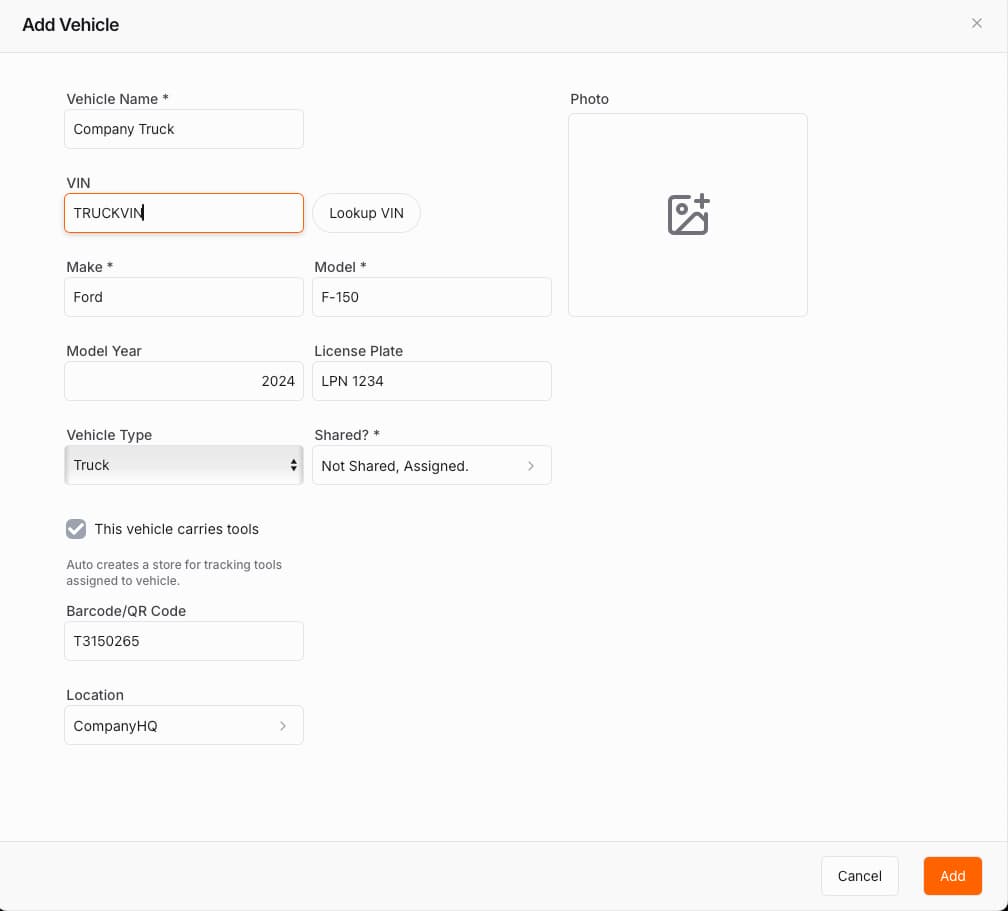
- Click Add Vehicle to create a new record.
- Fill in the necessary details such as make, model, year, registration number.
- Enable the Tool Carrier option to track tools associated with the vehicle.
- Save the vehicle record.
🪄 Convert Existing Equipment to Vehicles (Wizard)
To make adoption easy, ToolWorks includes a conversion wizard that lets you turn existing equipment into vehicles. If your organization previously tracked trucks or vans under the Equipment module, simply run the wizard to migrate those records. The wizard preserves your existing data, adds vehicle-specific fields (like registration, operator, and VIN), and automatically classifies the asset as a vehicle. No need to start over, your data transitions smoothly.
- Go to the Vehicles module in the main menu.
- Click on the Tool to Vehicle button.
- Follow the prompts in the wizard to select equipment records to convert.
- Review and confirm the conversion.
- Save the changes.
Manage Vehicles
Once vehicles are added, you can manage them through the Vehicles module. Here are some key management features:
Edit Vehicle Information
- Go to the Vehicles module in the main menu.
- Find and select the vehicle you want to edit.
- Update the necessary fields and save your changes.
Schedule Maintenance
- Go to the Vehicles module in the main menu.
- Find the vehicle you want to schedule maintenance for and click 'Add To Cart'
- Select
Maintenancefrom the cart options. - Fill in the maintenance details, including date, type of service, and any notes.
- Save the maintenance schedule to keep track of upcoming services.
Log Maintenance Activities
To log maintenance activities, go to the vehicle's detail page and select the Maintenance tab. Select the maintenance task you want to log and enter the details of the maintenance performed, including date, cost, and notes, and save the entry. You can also attach photos or service documents for reference.
Over time, these insights help you understand total ownership cost and identify high-maintenance vehicles.
Assign Vehicle to a User
- Go to the Vehicles module in the main menu.
- Find the vehicle you want to assign and click 'Select'
- Select
Assignfrom the cart options. - Choose the user from the list and set the assignment duration.
- Save the assignment to track who is using the vehicle.
Transfer Tools to Vehicle
- Go to the Vehicles module in the main menu.
- Find the vehicle you want to transfer tools to and view vehicle details.
- Click on the Tools in Vehicle tab and click
Add Tools. - Select the tools you want to transfer and click
Transfer Selected Tools.
Transfer Tools to Vehicle from Inventory
Vehicles that carry tools are also appear as a Location. So you can transfer tools to a vehicle directly from the Inventory module.
- Go to the Inventory module in the main menu.
- Find the tools you want to transfer and click 'Select'
- Select
Transferfrom the actions options. - Select the vehicle you want to transfer the tools to from Location picker and click
Transfer.
Raise Issue
- Go to the Vehicles module in the main menu.
- Find the vehicle you want to report an issue for and click 'Add To Cart'
- Select
Raise Issuefrom the cart options. - Fill in the issue details, including a title, description of the problem and any relevant photos.
- Click
Submitto log the issue.
Log Fuel
- Go to the Vehicles module in the main menu.
- Find the vehicle you want to log fuel for and click 'Add To Cart'
- Select
Log Fuelfrom the cart options. - Fill in the fuel details, including date, amount, cost, and any notes.
- Save the fuel log to keep track of fuel consumption and costs.
📊 Built for Scalability and Insight
Whether you manage a handful of service trucks or an entire fleet of hundreds, ToolWorks scales effortlessly. Use filters, search, and sort controls in the Vehicle module to find information quickly, or export data for reporting and analysis. Upcoming releases will also add Fleet Analytics dashboards for cost and performance insights.
Why It Matters
Vehicle Management connects the dots between tools, vehicles, and maintenance, creating a complete view of your mobile operations. With ToolWorks, you can:
- Track where every tool is, even on the move
- See which vehicles are assigned to which operators
- Keep maintenance on schedule and control costs
- Eliminate guesswork, spreadsheets, and manual tracking It’s a smarter, integrated way to manage both your tools and the vehicles that carry them.
Get Started with Vehicle Management
The Vehicle module is available now for all ToolWorks users on Professional plan and higher. Add new vehicles or convert existing equipment records in minutes. Start assigning tools, logging mileage, and tracking maintenance costs, all from one place.
With ToolWorks, managing your tools, equipment, and vehicles has never been easier.
Help