Check-Ins
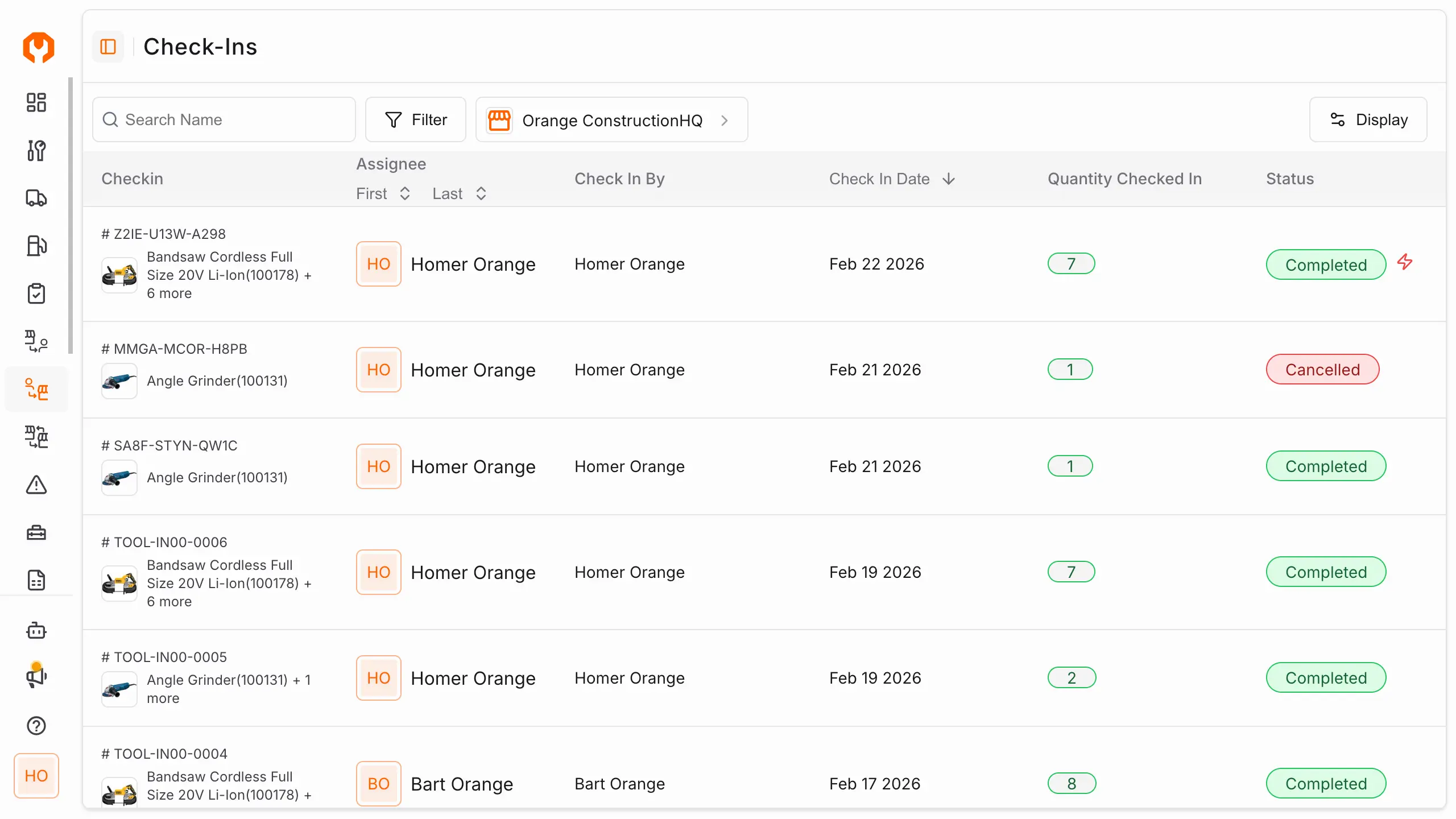
Check-Ins is a feature in ToolWorks that allows users to return tools that they have checked out. Check-Ins list show all tool check-ins, this include in person check-ins at the tool store, as well as self check-ins.
Check-In Types
ToolWorks support two type of check-ins flows:
Confirmed check-ins flow:
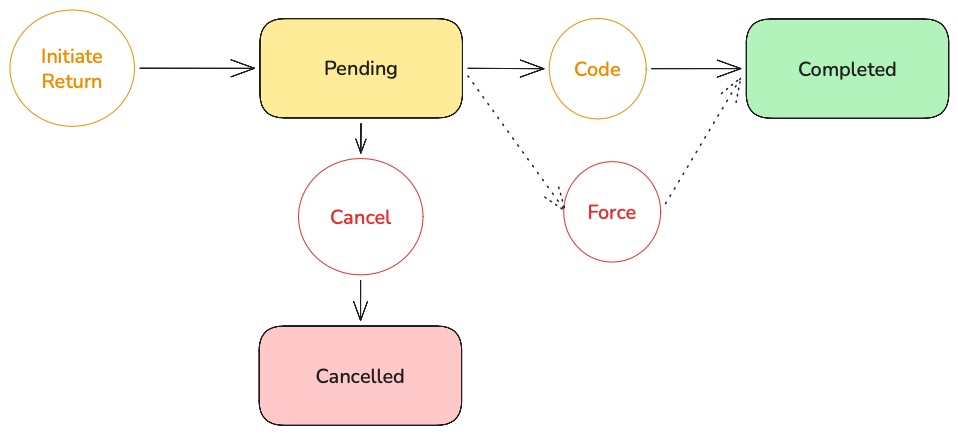
When a store staff initiates a check-in, the check-in is created with a status of Pending. The user returning the tools is provided with a 6 digit code to provide to store staff. Store staff can enter the code to confirm the check-in and Complete the process. This workflow is designed to ensure proper chain of custody and accountability for tools.
To utilize this workflow, go to Settings > Configuration > User Receipt of Tools requires Confirmation > Select Yes. With this setting enabled, all checkouts and check-ins will require a confirmation to be completed.
Forced Check-ins:
In case of drop-off check-ins, tools are returned without any interaction with store staff. In this case, check-in can be forced to completion without confirmation. This is to ensure that tools are returned in a timely manner and to prevent tools from being indefinitely checked out.
Direct Check-ins flow:
Check in is directly completed without any confirmation. Store staff just adds tools to check-in, optionally notes condition of tools and completes the check-in. This workflow is designed for quick check-ins when confirmed chain of custody is not a concern.
This is the default workflow when you start using ToolWorks. To switch to this workflow, go to Settings > Configuration > User Receipt of Tools requires Confirmation > Select No. With this setting disabled, all checkouts and check-ins will be completed without confirmation.
How to Check In tools
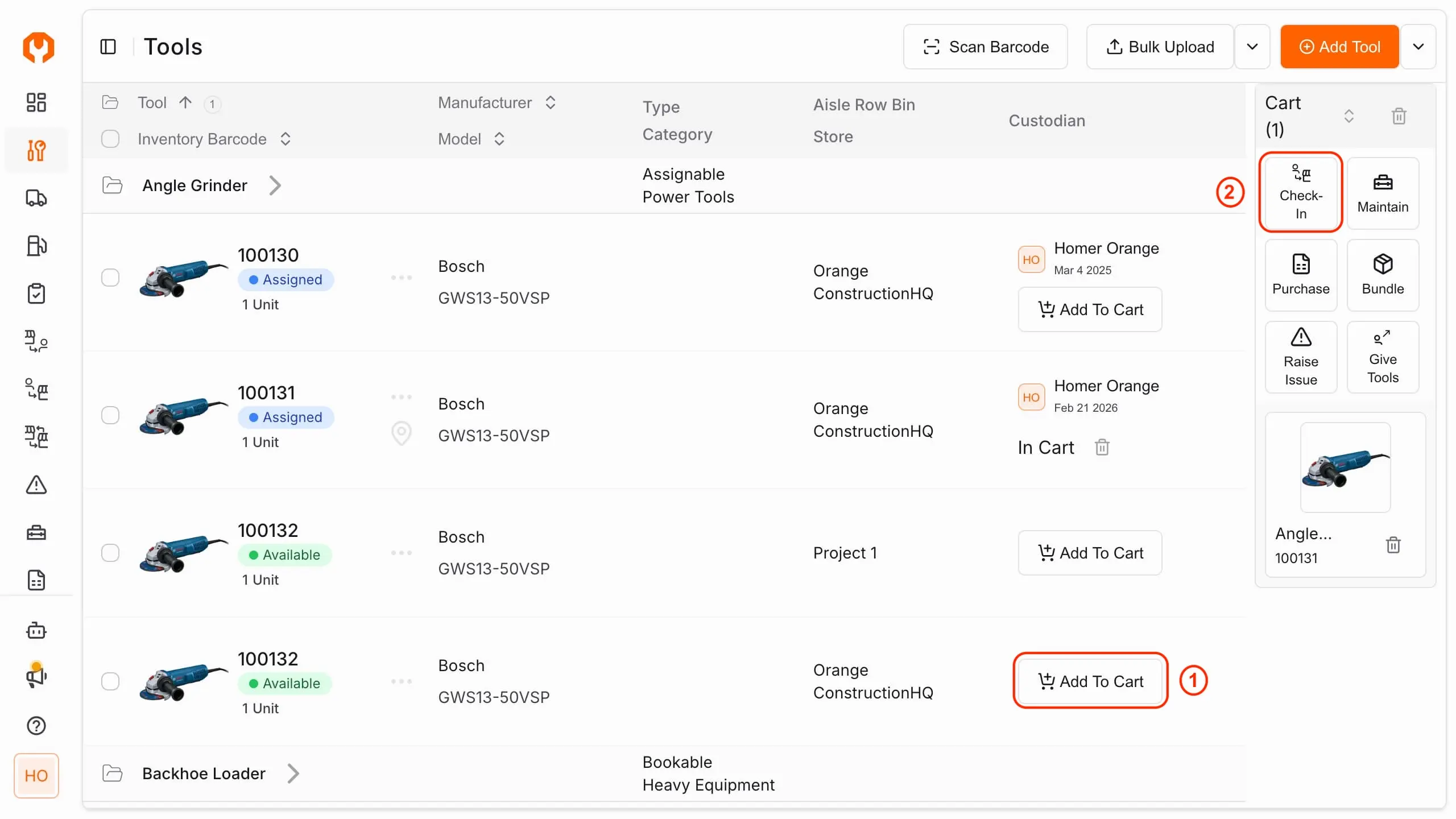
- Navigate to Tools tab. [shift-t]
- Find tools to check-in and click
Add To Cartfor each tool you want to check-in. - In the cart, click
Check In - Optionally, enter user, note condition of tools and click
Check Into return tools.
How to Check In Tools on Mobile using Scanner
- Navigate to Scan tab
- Scan tools that you want to check-in
- In the cart, click
Check In - Optionally, enter user, note condition of tools and click
Check Into return tools
Check In details
- Navigate to Check Ins tab [shift-i]
- Find the desired check-in record.
- Click the check-in record to view details.
How to Complete a Pending Check In
- Navigate to Check Ins tab [shift-i]
- Find the check-in record with
Pendingstatus. - Enter the 6 digit code provided by user and click
Check Into complete the check-in.
How to Force a Check In
- Navigate to Check Ins tab [shift-i]
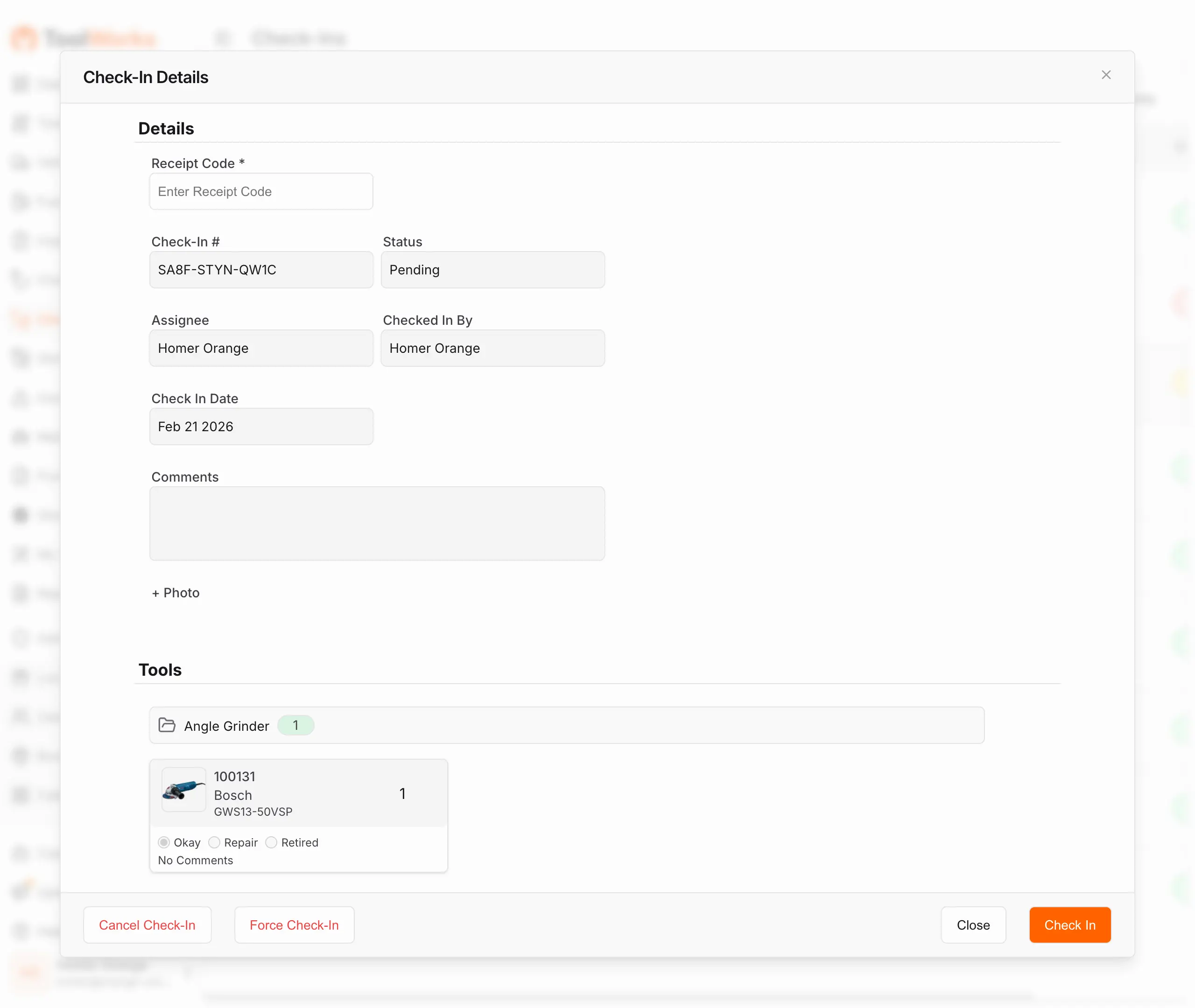
- Find the check-in record with
Pendingstatus. - Click
Force Check Into complete the check-in without confirmation.