How to Use an External Barcode Scanner
This guide explains how to connect your handheld scanner (USB or Bluetooth) to our system.
⚠️ Important First Step
Before you start: Your scanner must be set to "Auto-Enter." This means after it beeps, it should automatically "press" the Enter or Return key for you. If it doesn't do this, you will have to press Enter manually every time you scan. (Check your scanner’s manual to turn this setting on).
Using a Scanner on the Web (Computer)
- Go to the Tools tab.
- Click the button that says
Scan Barcode. - Point your scanner at the barcode and pull the trigger.
- The numbers will show up in the box automatically.
Using a Scanner on the Mobile App
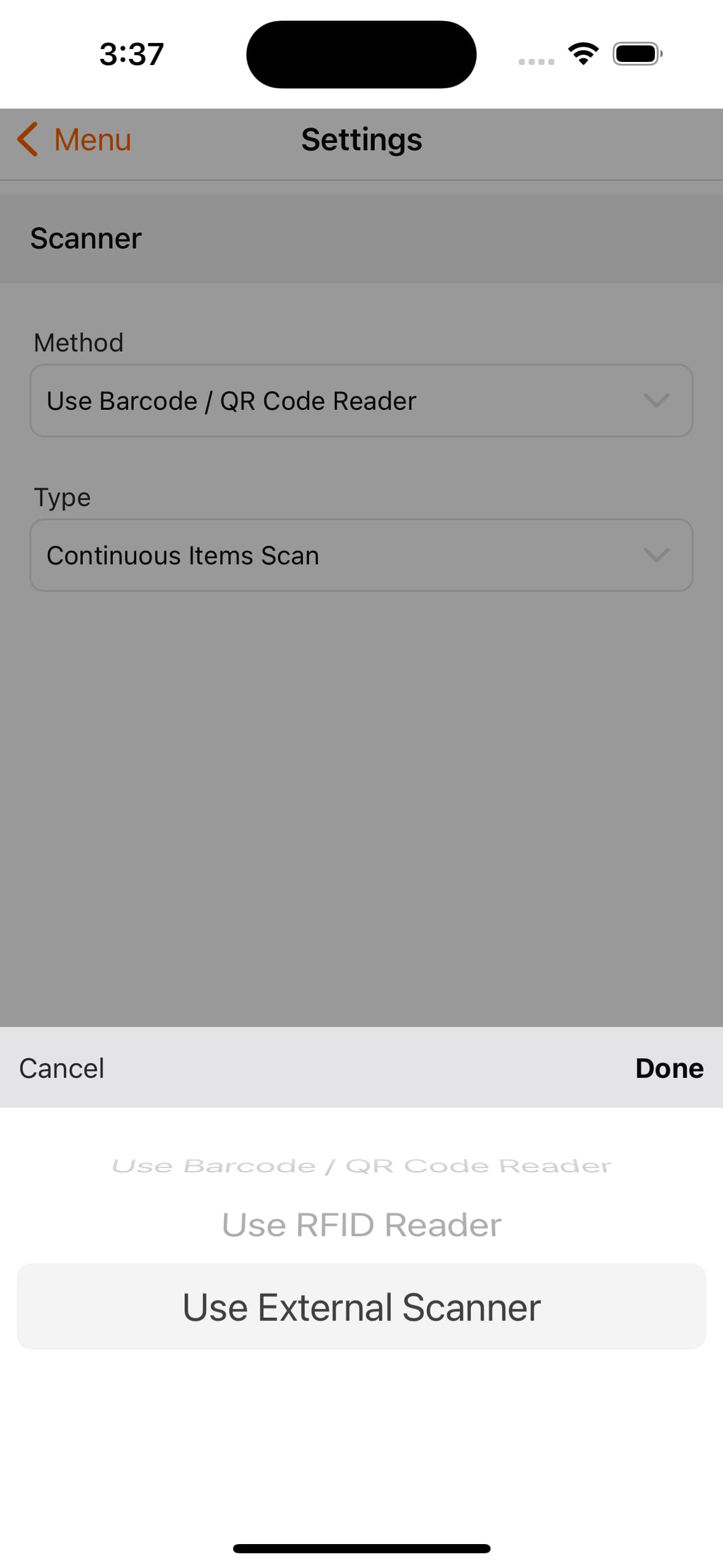
- Open the app and tap Menu.
- Tap Settings.
- Look for Scanner Method and turn on
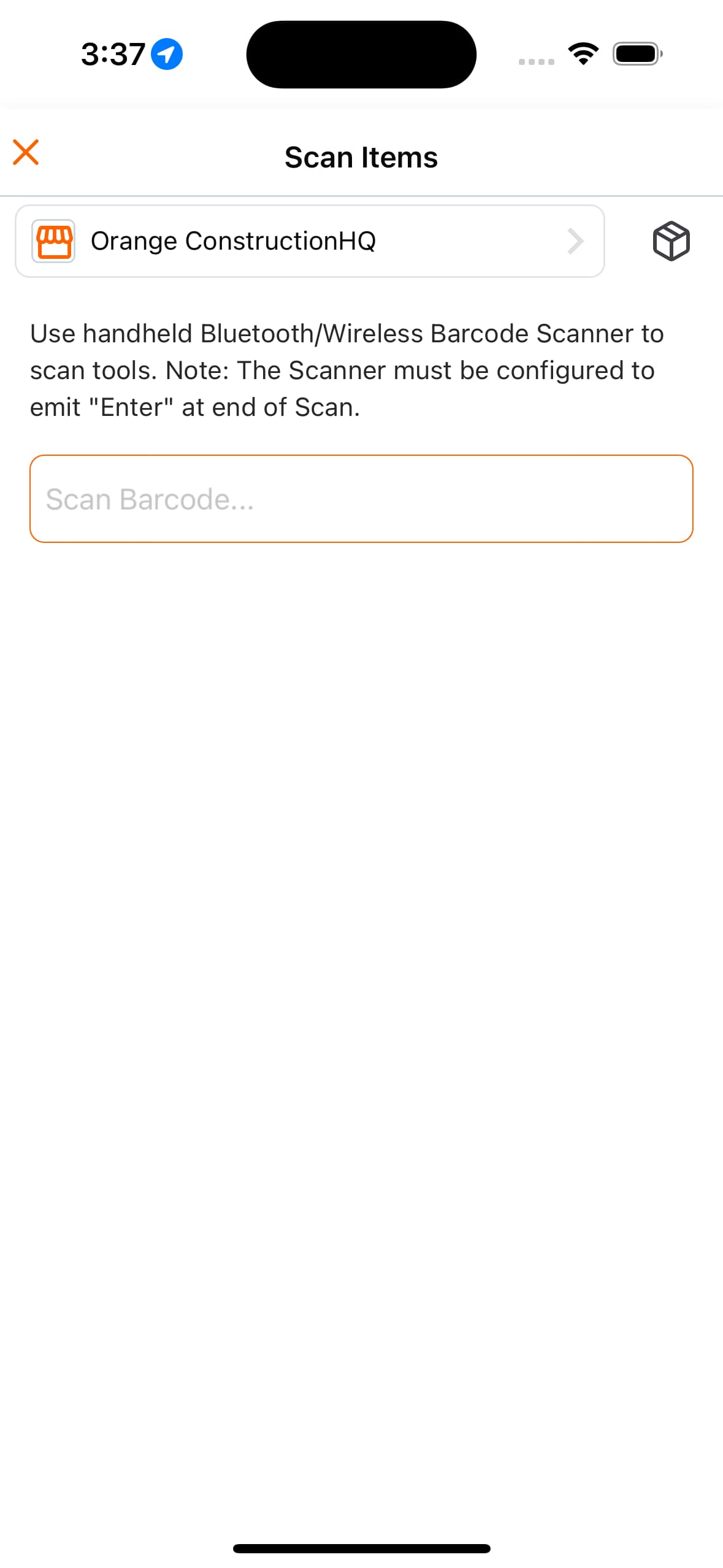
Use External Scanner. - Go back to the main screen and tap
Scan. You can now use your handheld scanner.
Having Trouble?
If the scanner isn't working, try these quick fixes:
- Check the connection: Is the USB cord plugged in tight? If it's Bluetooth, is it paired to your phone?
- Check the "Enter" key: Open a blank notepad or text message on your device and scan a barcode. Does the cursor jump to a new line automatically? If not, check your scanner manual to enable "Carriage Return" or "Enter Key."
- Restart: Close the app completely and open it again.
- Reconnect: Unplug the scanner or turn off Bluetooth, then turn it back on.
Common Questions
Q: What kind of scanner can I use?
A: You can use almost any standard USB or Bluetooth scanner. If it acts like a keyboard (types out numbers when you scan), it will work.
Q: Can I use two scanners at once?
A: Yes, but it is best to only use one at a time so they don't confuse the system.
Q: How do I change the beep volume or settings?
A: You will need to look at the paper manual that came with your specific scanner brand (like Zebra, Honeywell, etc.). We cannot change those settings from our app.
Help