Inspection Checklist TemplatesBuild Custom DVIR Checklists for Any Vehicle or Workflow
Start Tracking NowOverview
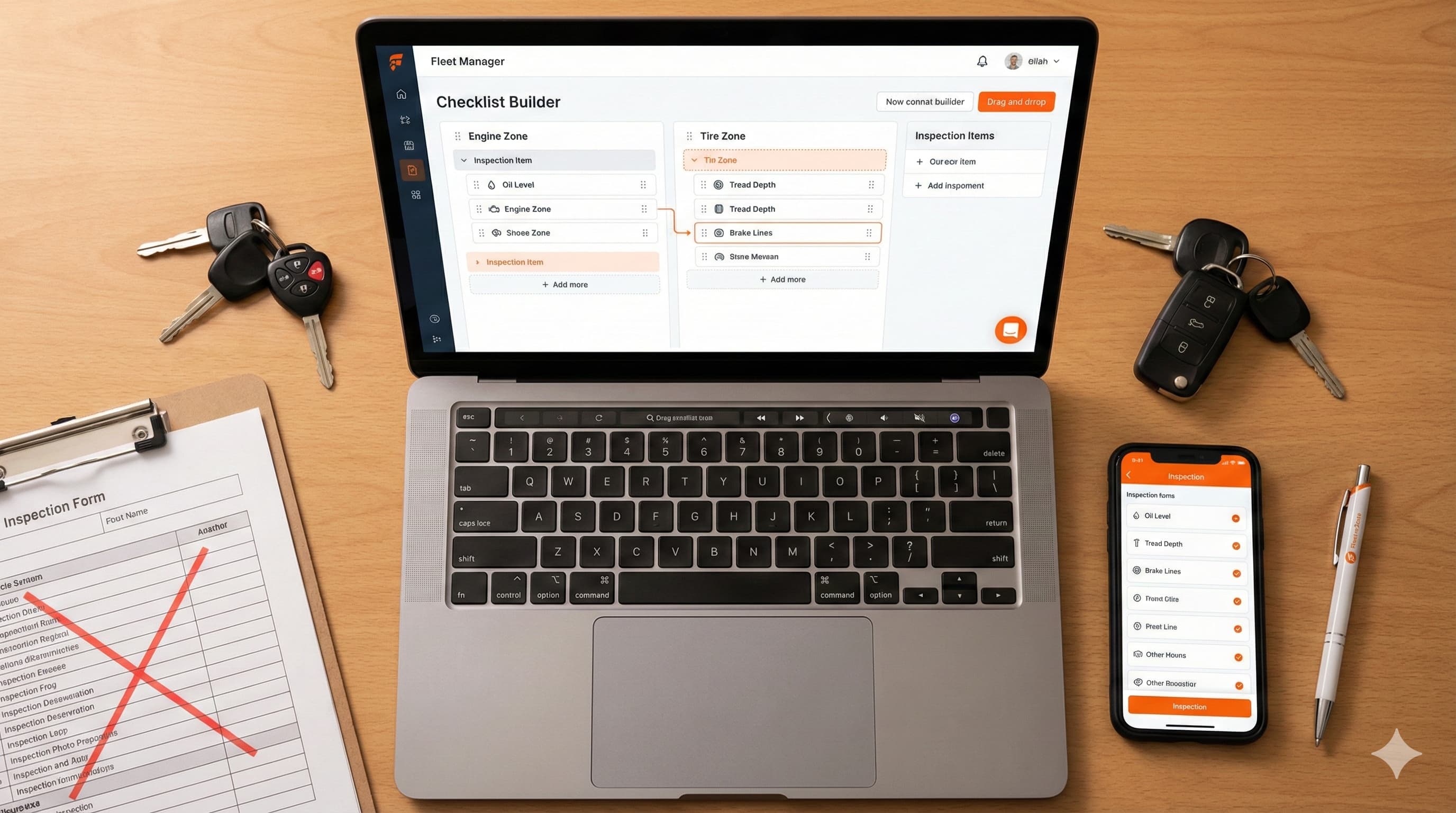
The Checklist Builder in ToolWorks gives fleet administrators complete control over inspection templates. Create custom checklists for any vehicle type, configure failure handling and required documentation, then assign checklists to vehicles with optional recurring schedules.
Designed as part of ToolWorks' expanding Fleet Management capabilities, this feature ensures that every driver follows consistent, compliant inspection procedures — whether conducting a standard pre-trip DVIR, documenting an incident, or performing a quick safety spot-check.
Start with pre-built templates for common scenarios or build entirely from scratch. The drag-and-drop interface makes it easy to add zones, configure items, and preview exactly what drivers will see in the field.
Key Highlights
Pre-Built Checklist Types
When creating a new checklist, start from one of four templates designed for common fleet scenarios:
| Type | Description | Best For |
|---|---|---|
| Standard DVIR | Complete pre/post-trip inspection with vehicle information, inspection zones, asset verification, and sign-off | Daily driver vehicle inspections |
| Event / Incident Report | Incident documentation with date/time, photos, notes, and drivability assessment | Accident or incident reporting |
| Safety Checklist | Zones-only inspection without header or sign-off sections | Quick safety spot-checks |
| Blank Checklist | Empty template to build from scratch | Custom workflows |
Each template provides a starting point that can be fully customized to match your operational requirements.
Drag-and-Drop Builder
The Checklist Builder provides an intuitive interface for designing inspection workflows:
- Add Sections — Organize inspections with logical groupings like Vehicle Information, Inspection Zones, Asset Verification, and Sign-Off
- Add Zones — Group inspection items by physical areas of the vehicle (Driver Side, Front Exterior, Cab Interior, Engine Compartment)
- Add Items — Configure individual inspection points with labels, input types, and failure settings
- Reorder with Drag-and-Drop — Move sections, zones, and items to match your preferred workflow
- Live Preview — See exactly how the checklist will appear to drivers before publishing
Pre-Configured Vehicle Zones
ToolWorks includes pre-configured zones that match standard vehicle inspection paths. Add them with one click:
| Zone | Items Included |
|---|---|
| Driver Side | Front/rear tires, side mirror, door and locks, fuel cap |
| Front Exterior | Headlights, turn signals, windshield, wipers, bumper, hood latch |
| Passenger Side | Front/rear tires, side mirror, door and locks |
| Rear Exterior | Tail lights, brake lights, backup lights, bumper, cargo door, license plate |
| Cab Interior | Service brakes, parking brake, steering, horn, warning lights, seat belt, fire extinguisher |
| Engine Compartment | Oil level, coolant level, belts and hoses, battery, leaks |
Zones can be customized with your own items, or create entirely custom zones specific to your equipment.
12 Input Types
ToolWorks supports a wide range of input controls to capture exactly the data you need:
| Type | Description | Use Case |
|---|---|---|
| Pass/Fail | Simple pass or fail toggle | Basic condition checks |
| Pass/Fail (Detailed) | Pass/fail with predefined failure reasons | Items with common failure modes (e.g., tires: low pressure, low tread, sidewall damage) |
| Number Input | Numeric entry with optional min/max validation | Odometer reading, engine hours |
| Text Input | Free text entry (single or multi-line) | Notes, descriptions |
| Checkbox Declaration | Certification checkbox | "I declare this inspection is accurate" |
| Signature Pad | Digital signature capture | Driver sign-off |
| Date/Time Picker | Date and time selection | Incident time |
| Photo Upload | Photo capture with optional min/max count | Documenting damage or conditions |
| Yes/No Toggle | Boolean toggle with custom labels | "Is the vehicle safe to drive?" |
| Calculated Status | Read-only display of overall inspection status | Summary display |
| Tool Verifier | Verify tool presence (present/missing) | High-value tool verification |
| Select List | Dropdown with predefined options | Selecting from predefined choices |
This flexibility allows you to build inspections, incident reports, safety audits, and custom workflows for any scenario.
Configurable Failure Settings
For each inspection item, configure exactly what happens when a driver marks it as failed:
Severity Levels
- Minor — Issue noted but vehicle can continue to operate (e.g., low washer fluid)
- Major — Critical safety issue that automatically marks vehicle as Out of Service (e.g., brake failure, flat tire)
Documentation Requirements
- Photo Required — Driver must capture a photo when marking the item as failed
- Comment Required — Driver must enter notes describing the issue
Pre-Defined Failure Reasons For Pass/Fail (Detailed) items, define specific failure reasons for consistent categorization:
- Low Pressure (Minor)
- Low Tread Depth (Minor)
- Sidewall Damage (Major)
- Flat / Blown Out (Major)
Drivers select from pre-defined reasons, ensuring failures are documented consistently across your fleet.
Asset Verification Section
Add an Asset Inspection section to verify that high-value tools assigned to the vehicle are present. When drivers conduct inspections, they confirm each tool is on board before departing.
This capability is unique to ToolWorks. Unlike standalone fleet inspection software, ToolWorks integrates with your existing tool and equipment tracking — giving you complete visibility into both vehicle condition and vehicle contents.
Flexible Assignment Options
Assign checklists to vehicles with granular control:
| Assignment Type | Description |
|---|---|
| All Vehicles | Applies to every vehicle in your fleet |
| By Vehicle Properties | Target vehicles by category, location (store), or catalog |
| Specific Vehicle | Assign to individual vehicles |
Configure additional options for each assignment:
- Is Mandatory — Inspection must be completed before vehicle use
- Validity Duration — How long a completed inspection remains valid (in hours)
- Priority Level — Order in which checklists appear when multiple are assigned
Recurring Schedules
Set up inspections to repeat automatically:
| Frequency | Use Case |
|---|---|
| Daily | Pre-trip inspections before each shift |
| Weekly | Weekly safety checks (e.g., every Monday) |
| Monthly | Monthly detailed inspections |
The system tracks compliance and shows which vehicles have pending or overdue inspections. Drivers see pending inspections prominently on their Dashboard.
Automated Notifications
Configure notifications to remind drivers and alert staff:
- Driver Reminders — Send push notifications before inspections are due
- Critical Failure Alerts — Fleet managers receive immediate notification when a Major failure is reported
- Overdue Alerts — Notify administrators when scheduled inspections are not completed
How It Helps
Not every vehicle requires the same inspection. A box truck has different safety-critical components than a pickup. A refrigerated trailer requires temperature checks. A crane truck needs outrigger inspections.
With ToolWorks Checklist Builder, fleet administrators can:
- Standardize Inspections — Ensure every driver follows the same procedures for consistent compliance
- Match Checklists to Vehicles — Create tailored templates for different vehicle types and equipment
- Enforce Documentation — Require photos and comments for failed items to ensure thorough reporting
- Automate Scheduling — Set up recurring inspections so drivers always know what is due
- Track Compliance — Monitor which vehicles have completed inspections and which are overdue
- Reduce Training Time — Pre-built templates and intuitive zone-based flow make it easy for drivers to conduct accurate inspections
Checklist Settings
Configure global settings that apply to the entire checklist:
| Setting | Description | Default |
|---|---|---|
| Require GPS | Capture GPS location when inspection is conducted | Enabled |
| Minimum Duration | Minimum seconds the inspection must take to be valid | 120 seconds |
| Allow Skipping Zones | Whether drivers can skip zones (not recommended for compliance) | Disabled |
The minimum duration setting prevents rushed inspections. If a driver submits a 50-item checklist in 30 seconds, the system flags it for review.
Part of ToolWorks Fleet Management
Inspection Checklists work seamlessly with other ToolWorks fleet capabilities:
- Vehicle Inspections — Drivers conduct inspections using the checklists you create
- Vehicle Management — Track your fleet vehicles, assign operators, and monitor maintenance
- Fuel Log Tracking — Record fuel purchases and monitor fuel economy
Together, these features provide complete operational visibility for modern fleets — all in one unified platform.
Feature Summary
| Category | Fleet Management |
|---|---|
| Availability | Web Application (Checklist Builder) + Web/Mobile (Conducting Inspections) |
| Templates | Standard DVIR, Event/Incident Report, Safety Checklist, Blank |
| Input Types | 12 configurable field types including Pass/Fail, Photos, Signatures, and Tool Verification |
| Purpose | Create custom inspection templates that ensure consistent, compliant vehicle safety procedures. |
Explore Other Features
Lost Tool Recovery
Recover lost tools faster with ToolWorks Lost Tool Recovery. QR asset tags link to a public “If Found” page so anyone can return misplaced equipment—no app required.
Field Portal
Field Portal feature empowers your field teams to manage their tools effortlessly, ensuring they have what they need, when they need it. Say goodbye to cumbersome paperwork and endless back-and-forth communications.
Order Management
With ToolWorks Order Management, we have streamlined the process of handling field requests, order dispatch, walk-in ad-hoc orders and even tool check-in to make your tool tracking experience easier and more effective than ever before.
Multiple Stores
ToolWorks features support for Hierarchal store location allowing you to model real world scenario, as well as letting you effortlessly transfer tools between stores, ensuring efficient inventory utilization and seamless operations.
GPS Tool Tracking
Utilize GPS Tool Tracking, which harnesses the power of GPS technology to provide accurate location data for your tools. This innovative solution streamlines tool management, boosts productivity, and minimizes tool loss, ultimately saving you time and money.
Scan And Go Transfer
With Scan and Go, ToolWorks has introduced an efficient new way to transfer tools between locations. By enabling quick on-the-spot scanning, it removes friction from the transfer process for both users and store owners. This feature helps streamline operations by getting tools where they need to be faster.