Tool Checkout
Start Tracking NowTool checkout is the act of formally issuing a tool or piece of equipment from an organization's inventory, usually a tool crib or tool room, to a user, commonly called the custodian. Every checkout records what was issued, who has it, and when it is expected back. The matching return is the tool check-in.
A well-run checkout and return process answers three questions at any moment: where is the tool, who has it, and when is it coming back? Get that right and you reduce tool loss, stop tool hoarding, and keep tools available for the next job, whether that's a manufacturing floor, a construction site, or a service truck.
What to Record on a Tool Checkout
Whether you use a paper sign-out sheet, a spreadsheet, or software, these are the fields that make a checkout log useful:
| Field | Why it matters |
|---|---|
| Tool / barcode | Identifies exactly which item left. Serialized tools need their own barcode or asset tag. |
| Quantity | Needed for bulk items and consumables that share one barcode. |
| Custodian | The person accountable until the tool is returned. |
| Issued by | The crib attendant or kiosk that processed the checkout. |
| From location | The tool crib, warehouse, or truck it left from. |
| Job / project | Where the tool is going, for job costing and finding it later. |
| Checkout date | Starts the custody clock. |
| Due date | Lets you flag overdue tools before they are lost. |
| Return date | Closes the record and makes the tool available again. |
| Condition on return | Catches damage early and sends tools to repair instead of back on the shelf. |
| Order / request number | Ties field requests and fulfillment to the tools issued. |
Not ready for software yet? Start with our free tool inventory template. It already includes Assigned To and Current Location columns, so you can track who has what in a spreadsheet today.
Tool Checkout Workflows
How tools leave the crib depends on how much control you need and whether the crib is staffed. Most organizations use more than one workflow, for example kiosk mode on the shop floor and field requests for remote crews.
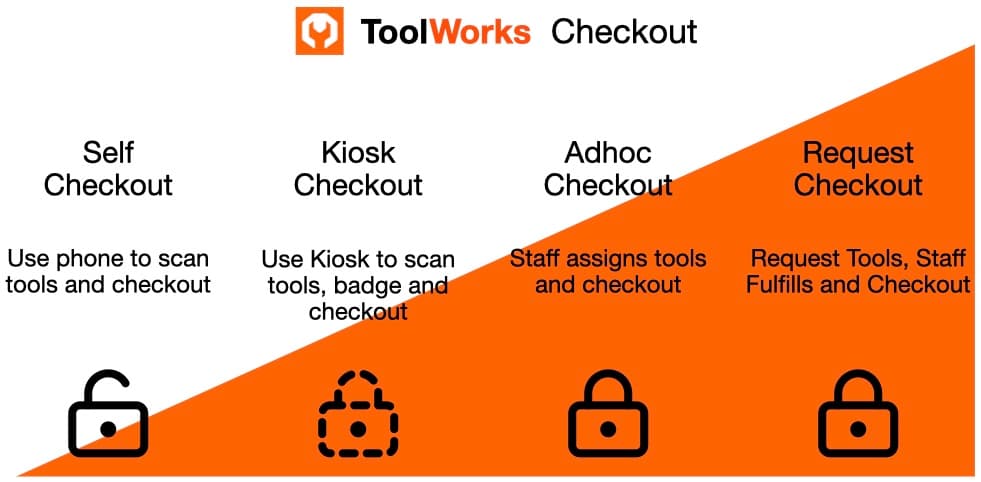
1. Self Checkout
Workers walk up to the tool crib, scan the tools they need with their phone, and check them out to themselves. No attendant is involved, but every checkout is still recorded against a named person.
- Scan toolsWorker, on mobile
- CheckoutRecorded to worker
- In use
- Scan to returnCheck-in
- Available
Best for: unstaffed or lightly staffed cribs and trusted crews who need tools fast. In ToolWorks, self checkout is limited to users with the Self Checkout right. See Self Checkout help.
2. Kiosk Mode Checkout
A tablet or touchscreen at the crib runs in a locked kiosk mode that only offers Checkout and Check In. Workers identify themselves by scanning their badge, then scan their tools.
- Scan badgeIdentifies worker
- Scan tools
- Checkout
- In use
- Kiosk check-inMark condition
- Available
Best for: manufacturing plants, maintenance shops, and shared tool rooms where workers come and go across shifts. Badge scanning keeps accountability even without an attendant. See Kiosk Mode.
3. Assignment Checkout (Attendant-Issued)
A tool crib attendant prepares the tools and issues them to the worker, recording the checkout on their behalf. This gives the most control at the counter, and works for long-term assignments too, such as a hand tool kit issued to a new hire.
- Add tools to cartAttendant
- Assign user
- Checkout
- In use
- Check-inAttendant
- Available
Best for: staffed tool cribs, high-value or calibrated tools, and long-term tool assignments. See Checkout help.
4. Field Request and Fulfillment
Workers on a jobsite request tools from the field. Crib staff pick the tools, mark the request ready, and the tools are picked up or delivered. If something isn't in stock, the request is marked Out of Stock instead of sitting unanswered.
- RequestFrom the field
- Pending
- PickedCrib staff
- ReadyWorker notified
- Picked up / delivered
- Completed
Best for: contractors with crews spread across multiple jobsites, and anyone who wants tools staged before the crew arrives. See Order Management.
Checkout by Asset Type
Not everything that leaves the crib is expected to come back the same way. How you check out and return an item depends on its asset type:
| Asset type | Tracked by | Checkout behavior | Return expected? |
|---|---|---|---|
| Consumables | One barcode, quantity | Issued and used up (gloves, blades, fasteners) | No, but surplus can be returned |
| Bulk items | One barcode, quantity | Issued in quantity (shovels, cones, ladders) | Yes, in full or in part |
| Tools (serialized) | One barcode per item | Issued to a person, often long-term | Yes |
| Equipment | One barcode per item | Reserved for set dates, then checked out | Yes, at the end of the reservation |
Equipment adds a reservation step, so two crews can't plan around the same forklift or generator:
- ReserveSet dates
- Checkout
- In use
- Return by end date
- Available
The Return: Tool Check-in
The checkout is only half of the record. A good check-in process:
- Closes the record. The tool goes back into available inventory and the custodian is no longer responsible for it.
- Records condition. Marking a tool as okay, needing repair, or damaged keeps broken tools off the shelf and feeds maintenance.
- Confirms custody when it matters. For a verifiable chain of custody, ToolWorks can require the worker to confirm with a 6-digit code before a check-in is completed.
- Surfaces overdue tools. Due dates turn "who has the torque wrench?" into a list you can act on.
Learn more about tool check-in and Check-In help.
Tool Checkout in ToolWorks
ToolWorks supports all four checkout workflows in one system, so you can run kiosk mode in the shop and field requests for remote crews side by side. Check out tools by barcode or QR code scan, from the web or the mobile app, even offline. You can also use ToolWorks Copilot to check out or reserve tools by typing a request in plain English.
Every transaction is logged with the custodian, dates, location, and condition, giving you a complete history for each tool.
Ready to take control of your tool crib? Start your free trial today or grab the free tool inventory template to get started.
Frequently Asked Questions
What is the difference between tool checkout and tool check-in?
Tool checkout issues a tool from inventory to a custodian and records who has it and when it is due back. Tool check-in is the return: the tool goes back into available inventory and its condition on return is recorded.
What fields should a tool checkout log include?
At minimum: the tool or barcode, quantity, custodian, checkout date, due date, the location it came from, and the return date and condition. Adding who issued it and a job or order number makes the log useful for audits and job costing.
How do you stop tools going missing from a tool crib?
Record every checkout against a named person, set due dates, review overdue tools regularly, and record condition on return. Barcode or QR code scanning removes most of the effort, so the process is actually followed instead of skipped on busy days.
Can a tool crib run without an attendant?
Yes. Self checkout and kiosk mode let workers scan their badge and the tools they take, so every checkout is still recorded against a person without a crib attendant on shift.
Should consumables be checked out the same way as tools?
They are issued the same way, but they are not expected to come back. Track consumables by quantity and record who used them and for which job, while allowing any surplus to be returned to stock.