Checklists
Checklists are the inspection templates in ToolWorks. A checklist lists what an inspector has to check, how each item is recorded, and what happens when an item fails. You can build checklists for vehicles (daily DVIR, pre-trip, incident reports) and for tools and equipment (ladders, harnesses, slings, fire extinguishers, power tools, and other safety equipment).
A checklist does nothing on its own. You also have to tell ToolWorks what gets inspected with it and when. This is the checklist's assignment (vehicles) or inspection schedule (tools). After that, inspectors can conduct inspections.
💡 Who is this for? This guide is for administrators and managers who create checklists and set up inspection schedules. If you conduct inspections, see Inspections.
- Overview
- Vehicle vs. Tool Checklists
- Create a Checklist
- The Checklist Builder
- Item Types
- Configure Failure Settings
- Checklist Settings
- Certificate Requirements
- Assign a Vehicle Checklist
- Create a Tool Inspection Schedule
- Notifications
- Security & Permissions
Overview
Setting up inspections takes three steps, plus an optional fourth:
| Step | Vehicles | Tools & Equipment |
|---|---|---|
| 1. Create the checklist | Choose Vehicle and start from a DVIR, incident, or safety preset | Choose Tool / Equipment and start from an OSHA, ANSI, or NFPA preset |
| 2. Require certificates | Optional. List the certificates an inspector must hold | Optional. List the certificates an inspector must hold |
| 3. Decide what is inspected | Assign the checklist to all vehicles, to a vehicle type/location, or to one vehicle | Create an Inspection Schedule on each tool that needs this checklist |
| 4. Inspect | Drivers inspect from the Dashboard or the vehicle | Inspectors run scheduled or ad hoc inspections from the tool's Inspections tab |
Each checklist defines:
- Sections: logical groupings such as header information, inspection zones, asset verification, and sign-off
- Zones: groups of related checks (e.g., Driver Side or Engine for a vehicle; Shell & Hardware or Webbing for a harness)
- Items: the individual checks inside each zone (e.g., Front Tire, Pressure Gauge, Stitching)
- Failure handling: what happens when an item fails, including severity and required photos or comments
Vehicle vs. Tool Checklists
When you create a checklist you pick who it is For: Vehicle or Tool / Equipment. This choice decides how the checklist gets assigned and where inspectors find it.
| Vehicle checklist | Tool / Equipment checklist | |
|---|---|---|
| Starting points | Standard DVIR, Event / Incident Report, Safety Checklist, Blank | OSHA, ANSI, and NFPA compliance presets, or Blank Tool Checklist |
| Assigned to | All vehicles, by vehicle type/location, or one vehicle | One tool at a time, through an Inspection Schedule on that tool |
| Scheduling | Daily, Weekly, or Monthly with days of week and a complete-by time | Interval (every N days), Meter (mileage or hours), or Upon Return |
| Inspected from | Dashboard, vehicle detail, or the Inspections page | The tool's Inspections tab, or a scheduled inspection assigned to you |
⚠️ Important: The All Vehicles, By Vehicle Property, and Specific Vehicle assignment types apply to vehicles only. A tool checklist is never applied to tools automatically. You must create an inspection schedule on each tool that needs it. See Create a Tool Inspection Schedule.
Create a Checklist
- Go to Checklists in ToolWorks.
- Click + Add Checklist.
- Under Select Checklist For, choose Tool / Equipment or Vehicle.
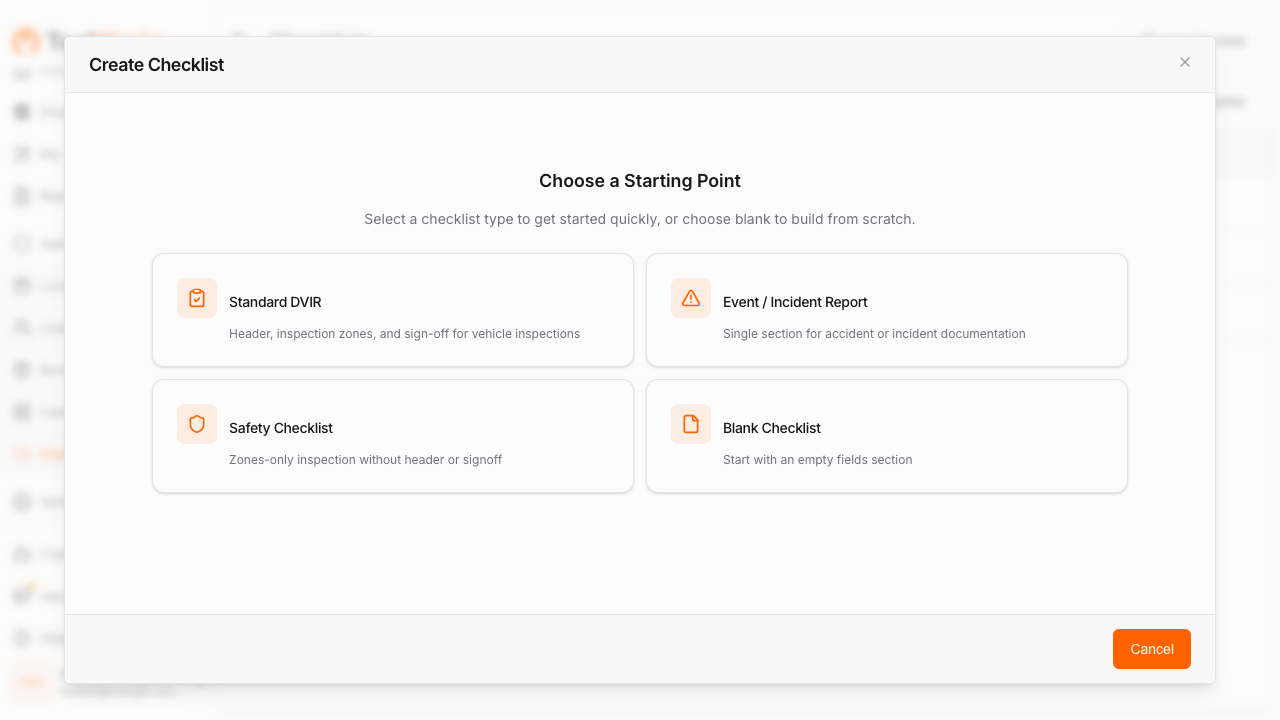
- Pick a starting point:
- Vehicle: one of the vehicle checklist types below, or blank.
- Tool / Equipment: search the compliance presets by standard (e.g., "NFPA 10"), name, or keyword, or pick Blank Tool Checklist.
- Enter a Name (e.g., "Monthly Fire Extinguisher Inspection").
- Click Create to open the Checklist Builder.
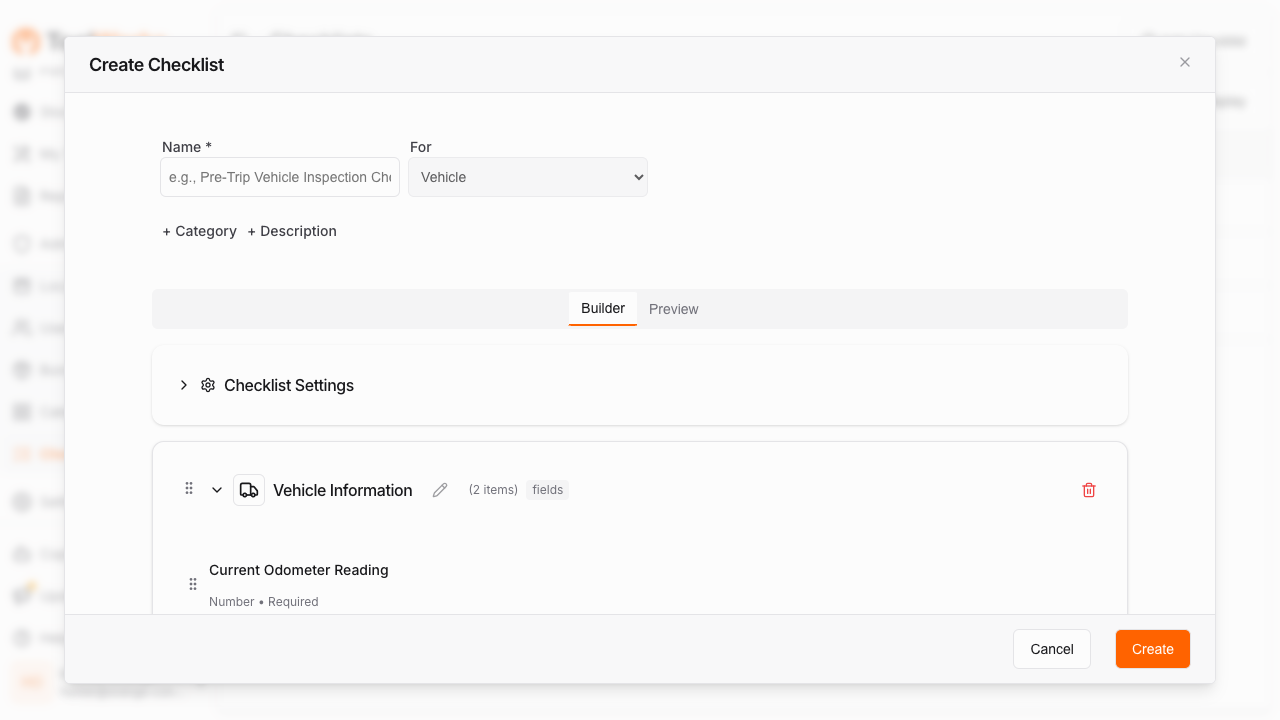
Vehicle Checklist Types
| Type | Description | Best For |
|---|---|---|
| Standard DVIR | Complete pre/post-trip inspection with header info, inspection zones, asset verification, and driver sign-off | Daily driver vehicle inspections |
| Event / Incident Report | Incident documentation with date/time, photos, notes, and drivability assessment | Accident or incident reporting |
| Safety Checklist | Zones-only inspection without header or sign-off sections | Quick safety spot-checks |
| Blank Checklist | Empty template to build from scratch | Custom workflows |
Tool & Equipment Presets
| Category | Presets |
|---|---|
| Power & Hand Tools | OSHA Frequent Tool Inspection (Daily / Pre-Shift) |
| Periodic & Electrical | Periodic Tool Safety & Electrical Integrity Inspection |
| Lifting & Rigging | Rigging, Slings & Lifting Hardware Inspection |
| Fall Protection | Fall Protection Equipment & Harness Inspection |
| Pneumatic & Hydraulic | Pneumatic & Compressed Air Tools Inspection |
| Ladders & Climbing | Portable Ladder & Climbing Equipment Inspection |
| Fire & Life Safety | Portable Fire Extinguisher Inspection; Emergency Egress, Exit Routes & Emergency Lighting; Hot Work & Fire Prevention; Flammable & Combustible Liquids Storage Safety |
| Custom | Blank Tool Checklist |
Presets are starting points. Once a checklist is created you can edit any section, zone, or item to match your procedures.
The Checklist Builder
The Checklist Builder is a drag-and-drop editor for the checklist. It has two tabs:
- Builder: edit sections, zones, and items
- Preview: see the checklist the way inspectors will
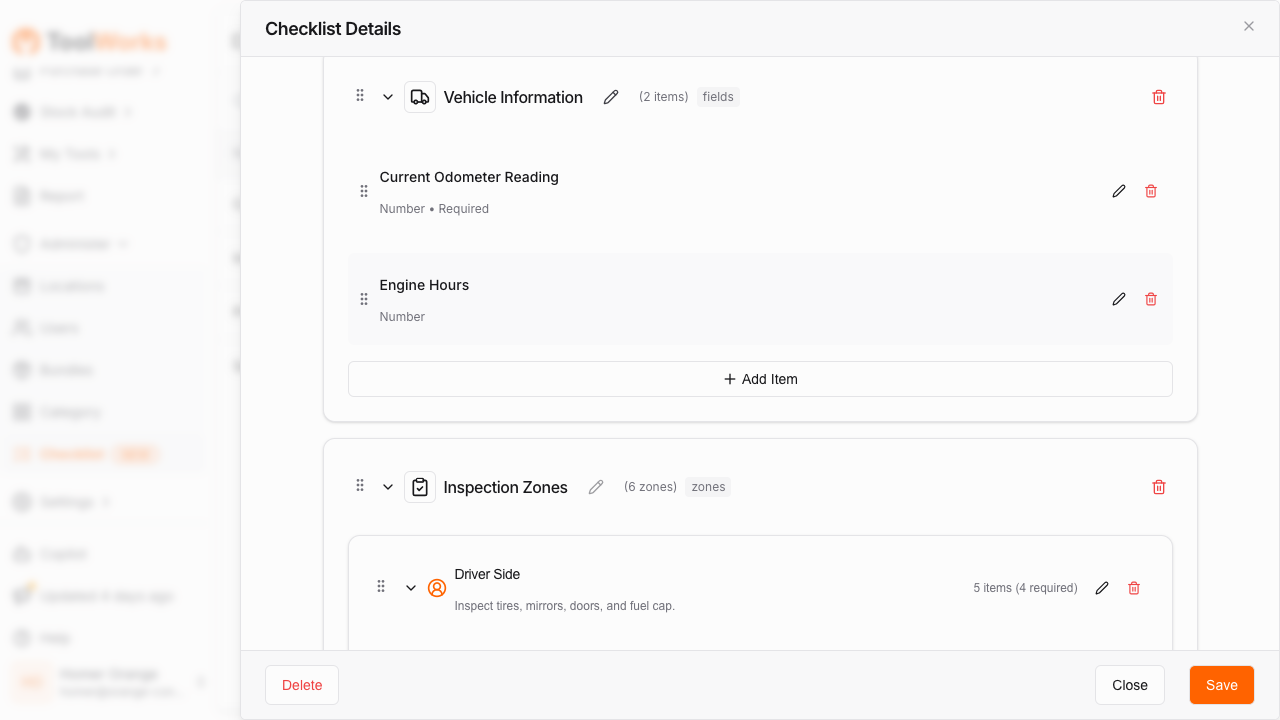
Sections
Sections are the top-level containers in your checklist. Common section types include:
| Section | Purpose |
|---|---|
| Vehicle Information | Capture odometer reading, engine hours, and other header data (vehicles) |
| Inspection Zones | Group pass/fail inspection items by area or component |
| Asset Inspection | Verify high-value tools assigned to the vehicle (vehicles) |
| Sign Off | Inspector signature and certification declaration |
| Incident Details | Date/time, photos, and notes for incident reporting |
| Custom Fields | Empty section for custom form fields |
To add a section:
- Click + Add Section in the Builder.
- Select the section type from the list.
- Drag sections to reorder as needed.
Zones
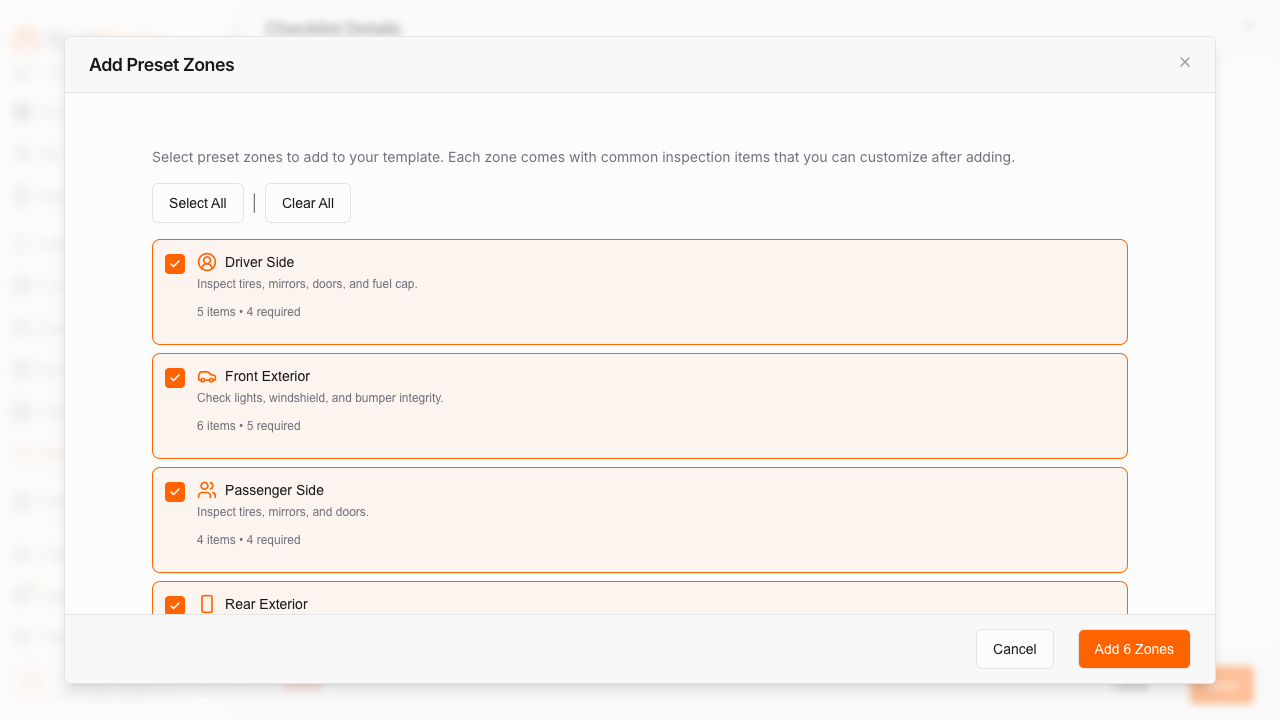
A zone is a group of related checks. On a vehicle a zone is an area of the vehicle. On a tool it is usually a component or category of checks (e.g., Cylinder & Pressure, Labels & Tags). ToolWorks includes preset vehicle zones you can add with one click:
| Zone | Items Included |
|---|---|
| Driver Side | Front/rear tires, side mirror, door & locks, fuel cap |
| Front Exterior | Headlights, turn signals, windshield, wipers, bumper, hood latch |
| Passenger Side | Front/rear tires, side mirror, door & locks |
| Rear Exterior | Tail lights, brake lights, backup lights, bumper, cargo door, license plate |
| Cab Interior | Service brakes, parking brake, steering, horn, warning lights, seat belt, fire extinguisher |
| Engine Compartment | Oil level, coolant level, belts & hoses, battery, leaks |
To add a zone:
- Click + Add Zone within an Inspection Zones section.
- Select a preset zone or create a custom zone.
- Customize the zone title, icon, and instruction text.
Items
Items are the individual checks inside a zone. Each item has:
- Label: what the inspector sees (e.g., "Pressure Gauge in Green")
- Type: the input control (see Item Types)
- Required: whether the item must be completed
- Failure Settings: what happens when the item fails
To add an item:
- Click + Add Item within a zone.
- Enter the item label.
- Select the item type.
- Configure failure settings as needed.
Item Types
ToolWorks supports 12 input types for inspection items:
| Type | Description | Use Case |
|---|---|---|
| Pass/Fail | Simple pass or fail toggle | Basic condition checks |
| Pass/Fail (Detailed) | Pass/fail with predefined failure reasons | Items with common failure modes (e.g., tires: low pressure, low tread, sidewall damage) |
| Number Input | Numeric entry with optional min/max validation | Odometer reading, engine hours, gauge readings |
| Text Input | Free text entry (single or multi-line) | Notes, descriptions |
| Checkbox Declaration | Certification checkbox | "I declare this inspection is accurate" |
| Signature Pad | Digital signature capture | Inspector sign-off |
| Date/Time Picker | Date and time selection | Incident time, last service date |
| Photo Upload | Photo capture with optional min/max count | Documenting damage or conditions |
| Yes/No Toggle | Boolean toggle with custom labels | "Is the equipment safe to use?" |
| Calculated Status | Read-only display of overall inspection status | Summary display |
| Tool Verifier | Verify tool presence (present/missing) | High-value tool verification on a vehicle |
| Select List | Dropdown with comma-separated options | Selecting from predefined choices |
Configure Failure Settings
For each item that can fail, you decide what happens when it does.
Severity Levels
- Minor: the issue is recorded, and the vehicle or tool stays in service (e.g., low washer fluid, faded label).
- Major: a critical safety issue. The vehicle or tool is put Out of Service (e.g., brake failure, cut harness webbing, discharged extinguisher).
⚠️ Important: A Major failure automatically marks the vehicle or tool Out of Service, and staff are notified right away. An out-of-service tool cannot be checked out until someone clears the status.
Failure Requirements
For each item, you can require:
- Photo Required: the inspector must take a photo when marking the item as failed
- Comment Required: the inspector must enter a comment when marking the item as failed
Failure Reasons (Detailed Pass/Fail)
For Pass/Fail (Detailed) items, you define specific failure reasons:
Code: low_pressure    Label: Low Pressure       Severity: Minor
Code: low_tread       Label: Low Tread Depth    Severity: Minor
Code: sidewall_damage Label: Sidewall Damage    Severity: Major
Code: flat            Label: Flat / Blown Out   Severity: Major
Inspectors pick from these reasons, so failures are recorded the same way every time.
Checklist Settings
These settings apply to the whole checklist:
| Setting | Description | Default |
|---|---|---|
| Require GPS | Capture GPS location when the inspection is conducted | Enabled |
| Minimum Duration | Minimum seconds the inspection must take to be valid | 120 seconds |
| Allow Skipping Zones | Whether inspectors can skip zones (not recommended for compliance) | Disabled |
Open them with the Settings gear icon in the Checklist Builder.
Certificate Requirements
Many inspections can only be done by a qualified person, such as an NFPA 10 extinguisher technician or a competent person for fall protection. In Certificate Requirements at the bottom of the checklist details, you list the certificates an inspector must hold. ToolWorks checks the inspector's certificates every time an inspection with this checklist is started.
- Open the checklist.
- Scroll to Certificate Requirements.
- Click Add Requirement Group.
- Add one or more certificates to the group.
- Set the group's Enforcement:
- Hard (block): an inspector without a valid certificate cannot conduct the inspection.
- Soft (warn + override): the inspector is warned and can continue only after entering an override reason. The reason is saved with the inspection.
- Add more groups if needed, then click Save Requirements.
How Groups Work
- Within a group (OR): the inspector must hold any one of the certificates in the group.
- Between groups (AND): the inspector must satisfy every group.
Example: for a fire sprinkler inspection you might set up:
| Group | Certificates | Enforcement | Meaning |
|---|---|---|---|
| Group 1 | NICET Level II Water-Based Systems or State Fire Sprinkler License | Hard | Must hold one of these, or the inspection is blocked |
| Group 2 | OSHA 10-Hour Construction | Soft | Should hold it. Missing it requires an override reason |
A checklist with no requirement groups has no certificate requirement. Changes apply to inspections started after you save. Past inspections keep the certificate record captured when they were started.
To learn how to set up certificate types and record who holds them, see Certificates.
Assign a Vehicle Checklist
Vehicle checklists are assigned from the checklist itself:
- Go to Checklists.
- Open the vehicle checklist.
- Select the Assignments tab.
- Click + Add Assignment.
Assignment Targets
| Target | Description |
|---|---|
| All Vehicles | Applies to every vehicle in your fleet |
| By Vehicle Property | Applies to vehicles of a vehicle type, at a location, or both |
| Specific Vehicle | Applies to one vehicle |
Availability and Schedule
- On Demand (Always Available): drivers can run the checklist any time.
- Recurring Schedule: the checklist is due on a schedule:
- Frequency: Daily, Weekly, or Monthly
- Days of Week: for Daily and Weekly schedules
- Day of Month: for Monthly schedules
- Repeat Every: e.g., every 2 weeks (Weekly and Monthly)
- Available Before Due Date (Days): how early the inspection can be started (Weekly and Monthly)
- Complete By (Time): the time of day the inspection is due
Example Schedules
| Scenario | Configuration |
|---|---|
| Daily pre-trip inspection | Daily, every day, complete by 8:00 AM |
| Weekly safety check | Weekly, Monday, repeat every 1 week |
| Monthly detailed inspection | Monthly, day 1, available 3 days before the due date |
Create a Tool Inspection Schedule
Tool and equipment checklists are not assigned from the checklist. You create an Inspection Schedule on each tool. The schedule links the tool to a checklist, names the inspector, and sets how often the inspection repeats.
⚠️ Important: You cannot conduct a scheduled tool inspection until the tool has an inspection schedule. Create the checklist first, then the schedule, then inspect.
- Go to Tools and open the tool (serialized tool or equipment).
- Select the Inspections tab.
- Click + Inspection Schedule.
- Fill in the schedule:
| Field | Description |
|---|---|
| Checklist Template | A Tool / Equipment checklist |
| Inspector | The person who will do the inspections. Required for a recurring schedule |
| Start Date | When the schedule begins |
| Repeats | How the next inspection is scheduled (see below) |
| Interval | For Interval, the number of days between inspections. For Meter, the meter count and Meter Type (Mileage or Hours) |
- Click Create.
Repeat Options
| Repeats | When the next inspection is due | Example |
|---|---|---|
| None | Not repeated. Schedule inspections yourself or inspect ad hoc | One-time acceptance inspection |
| Interval | Every N days. ToolWorks creates the next scheduled inspection | Fire extinguisher every 30 days |
| Meter | After N miles or hours of use | Generator every 250 hours |
| Upon Return | Every time the item is checked back in | Harness inspected after each checkout |
The repeat options available depend on your subscription plan. On plans without recurrence, you set Valid For (days) instead. That is how long a completed inspection stays current.
Inspector Certificate Warning
If the checklist has certificate requirements, ToolWorks checks the inspector you pick and shows a warning when they don't qualify:
- "…will be blocked from conducting it": the inspector is missing a certificate in a Hard group. You can still save the schedule, but that person won't be able to do the inspection until they hold a valid certificate.
- "…will need to give an override reason": the inspector is missing a certificate in a Soft group.
This warning is advisory. The certificates are checked again when the inspection is actually started.
Manage a Schedule
Click a schedule in the tool's Inspections tab to open it. From there you can:
- See the last inspection result and the next due date
- Edit Setup to change the inspector or recurrence
- Schedule Inspection to schedule one inspection for an inspector and date
- Conduct Adhoc Inspection to inspect right away
- Review all inspections done under this schedule
Deleting a schedule voids scheduled inspections that have not been started. Drafts and completed inspections are kept.
Notifications
| Setting | Description |
|---|---|
| Should Notify | Enable/disable notifications for this assignment |
| Notify Before | Days before due date to send reminder |
| Notify At | Time of day to send the notification |
Whatever these settings say, a Major failure always sends staff an immediate push notification. If an inspection is accepted without a required Hard certificate (for example, one done offline), administrators, the person who scheduled it, and the inspector's supervisor are notified. See Inspections.
Security & Permissions
Managing checklists and schedules requires:
| Right | Capability |
|---|---|
| Manage Templates | Create, edit, and delete checklists and certificate requirements |
| Manage Inspection | Create assignments and tool inspection schedules; schedule inspections |
| Manage Certificates | Maintain certificate types and user certificates (see Certificates) |
Inspectors need:
| Right | Capability |
|---|---|
| Field Inspection | Conduct inspections in the field |
| Manage Inspection | Full access to view, edit, and void inspections |
Next Steps
- Learn how inspectors conduct inspections: Inspections
- Set up certificate types and inspector qualifications: Certificates
- Set up vehicles for your fleet: Vehicle Management
- Track maintenance based on inspection findings: Maintenance